This guide explores how to set up a powerful local code assistance solution by combining Modular’s MAX Serve with the Continue VS Code extension.
We’ll walk through the process of deploying a local language model using MAX Serve and integrating it with Continue, creating a seamless development experience that operates entirely on your local machine. This setup provides the benefits of AI-powered code assistance while maintaining full control over your development environment.
MAX Serve
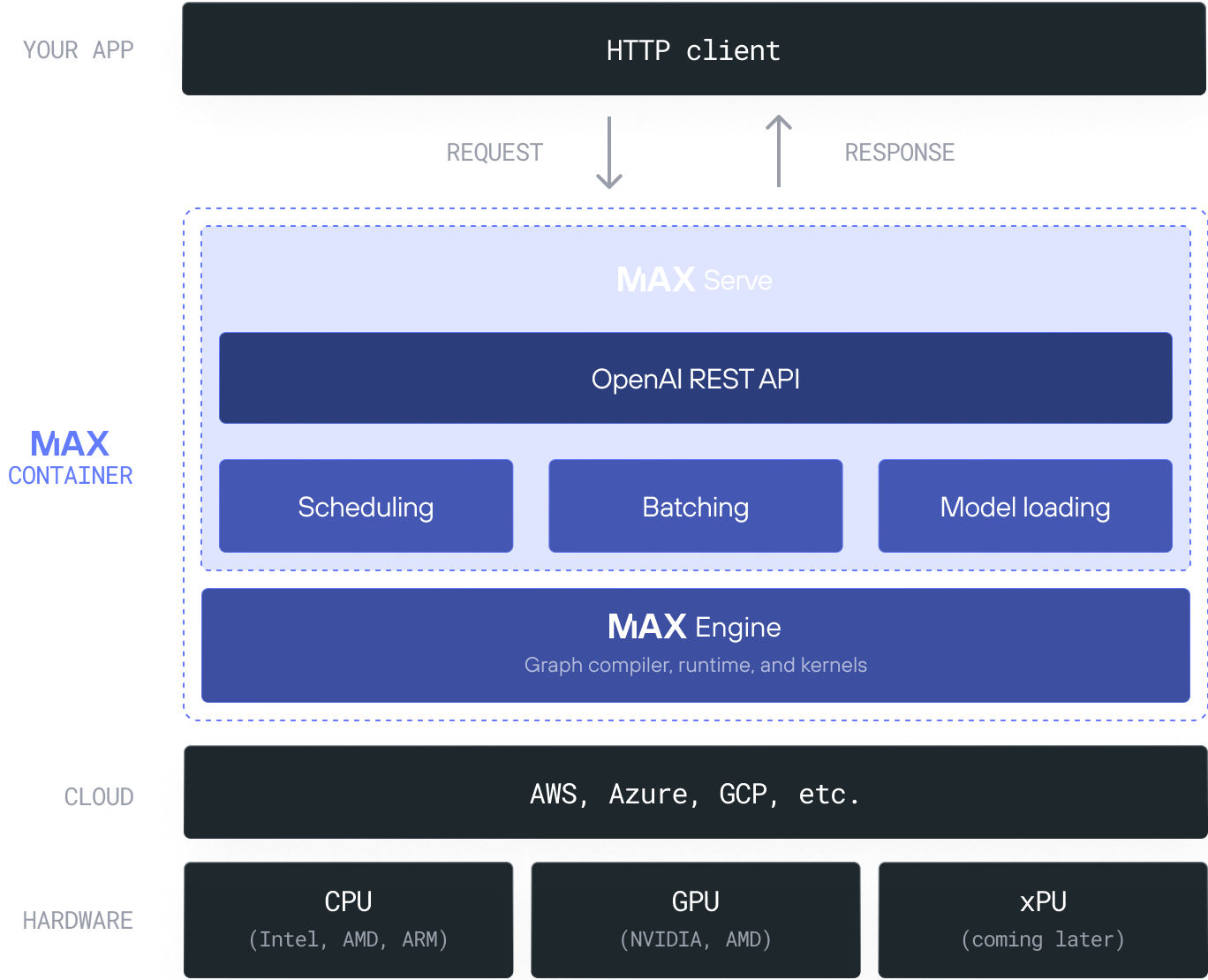
MAX Serve is a Python-based inference server that provides an OpenAI-compatible REST endpoint for both local and cloud environments. At its core, MAX Serve uses MAX Engine, which features a high-performance graph compiler and runtime for model acceleration.
Continue
The open-source code assistant Continue can connect directly to MAX Serve’s OpenAI-compatible REST endpoint.
To get started, we’ll launch the MAX Serve endpoint and then configure it in Continue.
Deploy local Endpoint
The following is from the MAX documentation: Deploy a PyTorch model from Hugging Face | Modular
Prerequisites
Install the Hugging Face CLI: Command Line Interface (CLI)
Authenticate using huggingface-cli
huggingface-cli loginSetup MAX repository
Clone the MAX repo:
git clone git@github.com:modularml/max.gitAfter cloning, navigate to max/pipelines/python directory
cd max/pipelines/python/Serve Endpoint
Use the magic CLI to start the server endpoint. If you don’t have the magic CLI yet, you can install it on macOS and Ubuntu Linux with this command:
curl -ssL https://magic.modular.com/deb1e9f0-447e-4b92-a807-29d62898936f | bashThen run the source command that’s printed in your terminal.
The command we’ll run is magic run serve, which takes supports ahuggingface-repo-id parameter. This parameter allows you to specify an LLM
model hosted on Hugging Face.
magic run serve --huggingface-repo-id=Qwen/Qwen2.5-1.5B-InstructThis command downloads the model and sets up MAX Serve to host a local endpoint.
The endpoint is ready when you see output similar to the following in your terminal:
uvicorn running on http://0.0.0.0:8000Test the endpoint
once the server is up and running, we can test with this curl command:
curl -N http://localhost:8000/v1/chat/completions \
    -H "Content-Type: application/json" \
    -d '{
        "model": "Qwen/Qwen2.5-1.5B-Instruct",
        "stream": true,
        "messages": [
            {"role": "system", "content": "You are a helpful assistant."},
            {"role": "user", "content": "What is the capital of Mongolia?"}
        ]
    }' | grep -o '"content":"[^"]*"' | sed 's/"content":"//g' | sed 's/"//g' | tr -d '\n' | sed 's/\\n/\n/g'
Here is the expected output:
The capital city of Mongolia is Ulaanbaatar.Configure MAX Serve with Continue
Now that we have our MAX Serve endpoint running locally, lets connect our endpoint to Continue in VSCode!
Setup VS Code
- Click
Installon the Continue extension page in the Visual Studio Marketplace - This will open the Continue extension page in VS Code, where you will need to click
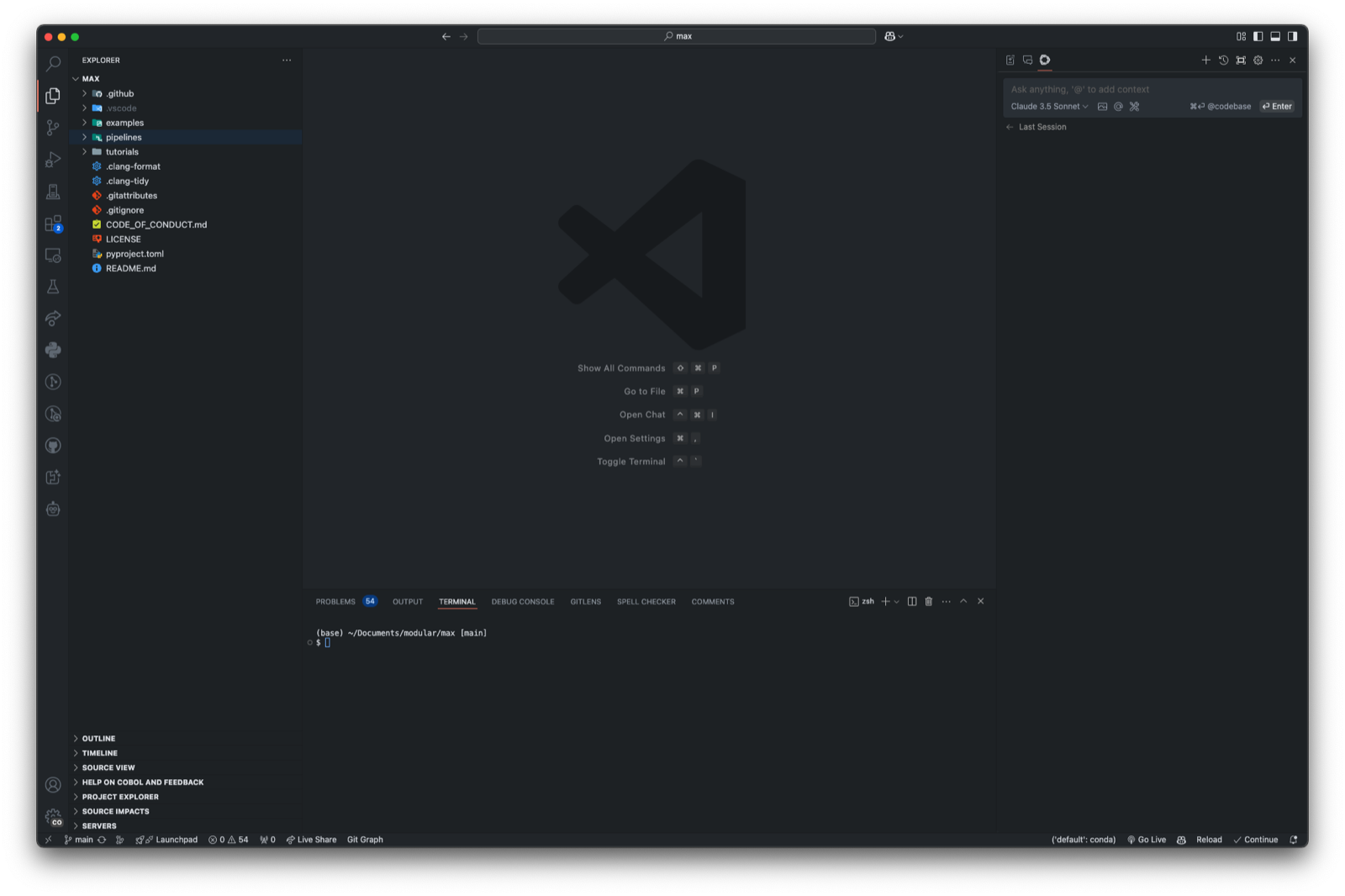
Installagain - The Continue logo will appear on the left sidebar. For a better experience, move Continue to the right sidebar
Configure MAX Serve Endpoint
Next, we need to configure our MAX Serve endpoint.
- Open the VSCode command pallet (cmd+shift+p) and run
Continue: Open Continue ConfigThis will open the configuration settings for the Extension:~./continue/config.json

- under the
modelssection of the config file, add the following:
{
  "models": [
    {
      "model": "Qwen/Qwen2.5-1.5B-Instruct",
      "title": "MAX - Qwen/Qwen2.5-1.5B-Instruct",
      "apiBase": "http://localhost:8000/v1/",
      "apiKey": "",
      "provider": "openai"
    }
  ]
}
the
apibaseis the same of the server endpoint from before:http://0.0.0.0:8000
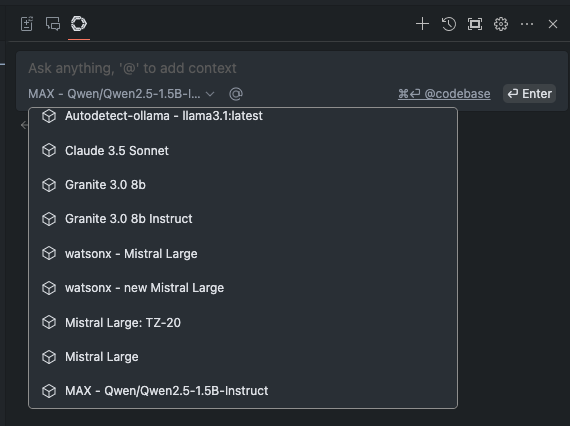
Once you save the config file, the model should be available from dropdown in the chat window
Continue Features
here are some Continue features using MAX Serve
Chat
The chat interface allows you to get AI assistance directly within your IDE environment
Edit
The Edit feature provides a convenient way to modify code directly within your current file
Key takeaways
Using MAX Serve with Continue provides a powerful local code assistant solution that combines the efficiency of local model inference with the user-friendly features of Continue. By leveraging MAX’s OpenAI-compatible REST endpoint, developers can access AI assistance directly within their IDE without relying on cloud services. The setup process involves deploying a local endpoint using MAX Serve and configuring Continue to communicate with this endpoint, resulting in a seamless development experience with features like contextual chat and direct code editing capabilities.